
Instead of searching for the same furniture every time you return to Elegante, build an Elegante wish list by saving product pages in a named browser bookmark folder. This guide uses desktop Chrome bookmarks and a simple notes document, so you can keep a furniture shortlist without relying on a store-specific wish list feature.
- Build an Elegante wish list with browser bookmarks to keep furniture product pages together.
- Save the product page, then record your preferred finish and room measurements separately.
- Reopen every saved page to verify your shortlist before making a purchase decision.
- Browser bookmarks save links; they do not confirm account syncing or preserve product selections.
Why this matters
A furniture shortlist needs more than attractive photographs. You need to remember which room each piece belongs in, why you saved it and what still needs checking.
For Elegante furniture shoppers, a browser bookmark folder is best for keeping a personal shortlist of product pages. Its strength is simplicity; its limitation is that a saved link does not necessarily retain the finish or other selection you were viewing.
For your 2026 room project, keep the product link and your decision notes together. That gives you a useful record rather than another collection of tabs you cannot identify later.
This is a browser-based workflow, not instructions for a retailer-operated wish list. You control the folder, its contents and the notes you attach to your planning process.
Before you start
- Use desktop Chrome and a normal browser window. Have the furniture product pages you want to save open, plus access to your browser's bookmark controls. A store account is not required for this method.
- Prepare a notes document and your room measurements. Record dimensions in centimetres or millimetres, keeping the same unit throughout each comparison.
- Check the selection before saving. A bookmark stores the page address, not a guaranteed record of the selected finish, size or configuration. Write those details separately, and do not assume bookmarks will appear on another device unless you have checked your browser's syncing settings.
The important gotcha: saving a product page is not the same as saving a particular version of that product. Treat the link as a route back to the listing, and your notes as the record of what interested you.
Save product pages
Start with a single product page rather than a search results page. A direct product link is easier to identify when you return to your shortlist.
Create your bookmark folder
- Open a furniture product page you want to keep.
- Press Ctrl+D on Windows or Command+D on Mac to open Chrome's bookmark dialogue.
- In Name, enter a recognisable description, such as the product name followed by its intended room.
- Use Folder to choose where the bookmark belongs, then select Done.
- Open Chrome's main menu, then Bookmarks and lists, followed by Bookmark manager.
- In the bookmark manager's menu, select Add new folder and name it 2026 furniture shortlist.
- Move your saved bookmark into that folder.
Expected result: your folder contains a bookmark that opens the intended product page. Open the bookmark once to check it before saving the rest of your shortlist.
The folder name is your own organisational label, not a feature supplied by the retailer. Use a project name that will still make sense after you have closed your current browsing session.
Add the remaining candidates
- Open the next furniture product page.
- Press Ctrl+D or Command+D again.
- Give the bookmark a clear Name.
- Under Folder, choose 2026 furniture shortlist, then select Done.
- Repeat only for pieces you genuinely want to compare.
Save the destination page itself, not an image-search result or a social media preview. You want a direct route back to the product information.
Annotate your shortlist
Bookmarks tell you where to return. Notes explain why you wanted to return, which is what makes the shortlist useful during a room refresh.
Record the decision details
- Create a heading in your notes document that matches the bookmark folder name.
- Copy each shortlisted product's address from your browser into the document.
- Record the exact product name shown on the page.
- Add your preferred finish or configuration, where relevant.
- Write the intended room and the question you need to resolve before deciding.
Expected result: each saved product has an identifiable link, a clear purpose and a next action. You can distinguish a serious candidate from something you saved only for inspiration.
Use this repeatable note structure:
- Product: copy the name from the listing.
- Room: identify the intended location.
- Selection: record the finish or configuration you were considering.
- Fit: compare the listed dimensions with your measured space.
- Next check: state the unresolved decision.
For example, your next check might be whether a chair tucks beneath your existing table. That is a more useful reminder than simply writing that you like its appearance.
Separate facts from preferences
Keep information copied from the listing separate from your own impressions. Label a finish as the listed finish, and describe your reaction as a preference rather than a product fact.
Do the same with dimensions. Record furniture width, depth and height in centimetres, then keep doorway or room measurements alongside them in centimetres too; mixed units make comparisons harder to read.
Record 3 measurements for the furniture footprint: width, depth and height. Where movement matters, also measure the surrounding space rather than treating the product's footprint as the whole layout.
Reopen and verify
A saved bookmark is useful only if it takes you back to the right place. Test the workflow before you rely on it for a larger furniture project.
- Close the product tab after saving its bookmark and notes.
- Open your shortlist folder in Chrome.
- Select the saved bookmark.
- Compare the product name with your notes.
- Check any finish or configuration again rather than assuming the page remembered it.
- Update your notes when your preferred selection changes.
Expected result: the saved link reopens the intended listing, and your notes identify the version you meant to consider. If either part fails, correct it before adding more pieces.
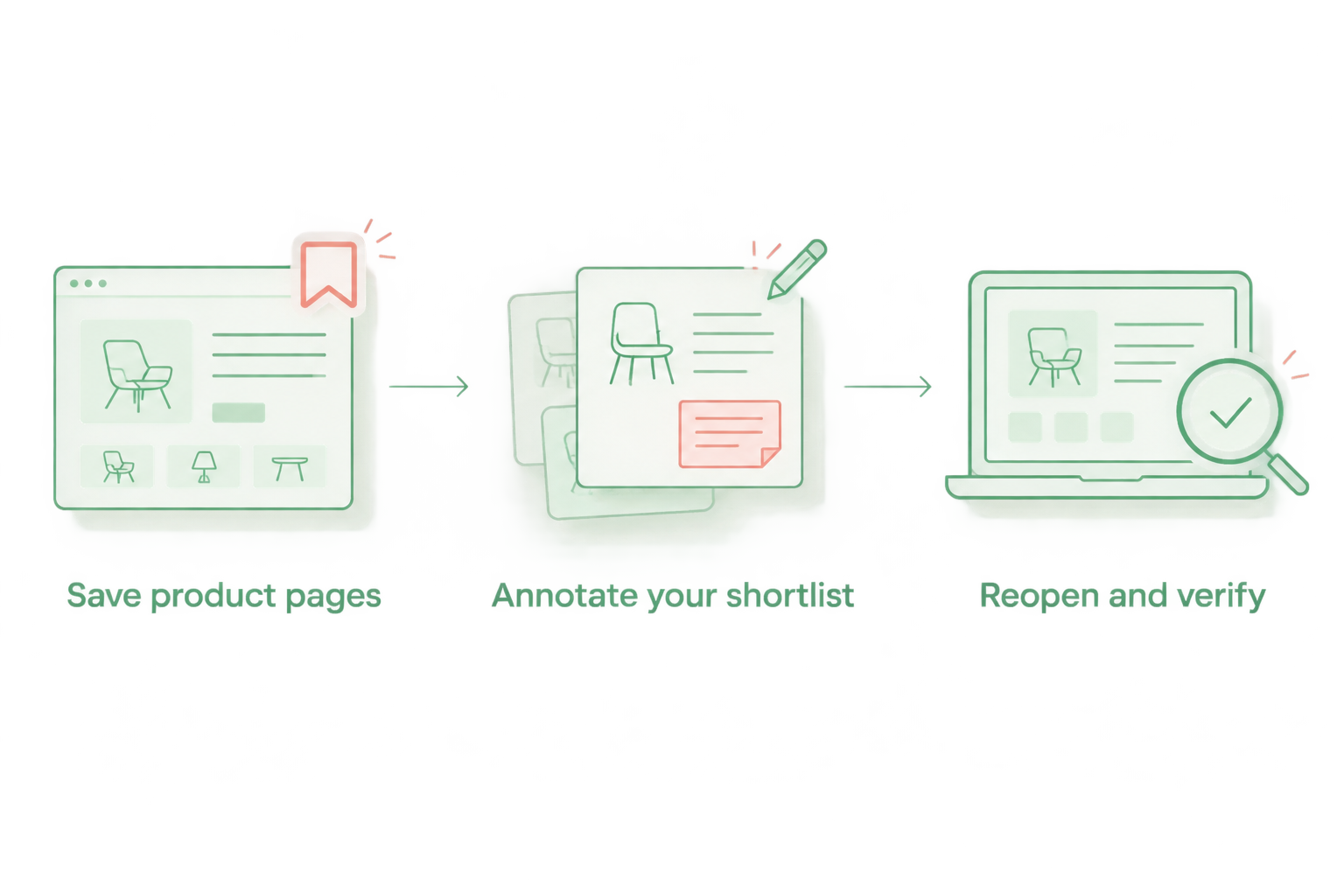
The complete routine is Save product pages, Annotate your shortlist, Reopen and verify. Repeat that sequence for each serious candidate rather than postponing all your checks until the end.
Check the workflow on another device
If you plan to browse on your phone and decide on your computer, test that handover with 1 saved product before building a large list. Open the same bookmark folder on the second device and confirm that the link is present.
Do not treat signing into a retailer account as proof that browser bookmarks will follow you. Browser syncing and store accounts are separate systems.
If you prefer not to sync browser data, use your notes document as the handover instead. Open the document on the second device and follow the saved product address from there.
Share a furniture shortlist for a second opinion
A shared notes document is the adjacent workflow when someone else needs to review your choices. It preserves the product links and your reasoning without assuming a retailer's wish list supports sharing.
- Copy the shortlisted product addresses into a document you can share.
- Group the entries by room rather than by the order you discovered them.
- Put your preferred option first and explain why it leads.
- State the specific feedback you need, such as finish, proportions or suitability beside existing furniture.
- Test the document's access permissions before asking someone to review it.
Expected result: the other person can open the relevant pages and respond to a clear decision. They do not need access to your browser profile.
For a 2026 dining-room project, ask someone to compare 2 candidates against the same requirements. A focused choice produces more useful feedback than a long, unstructured collection.
Choose the right saving method
| Method | Best for | Advantage | Limitation |
|---|---|---|---|
| Browser bookmarks | Your personal furniture shortlist | Keeps direct product links together | Does not provide a structured place for detailed decision notes |
| Shared notes document | Decisions involving another person | Combines links, measurements and comments | Requires manual organisation and permission checks |
| Screenshots | Remembering a visual detail | Records what was visible when captured | Does not replace a working product link or current product information |
Use browser bookmarks with notes as your default. Add screenshots only when a visual detail needs a separate reference, and keep the corresponding product link beside each image.
A screenshot is a record of a viewing moment, not confirmation that the page remains unchanged. Revisit the listing before making your final selection.
Troubleshooting
The saved link opens the wrong page
Open the intended product listing again and copy its address directly from the address bar. Replace the incorrect bookmark rather than saving another similarly named entry.
Search results, collection pages and image previews are less precise destinations. Check the product name after reopening the corrected link.
The finish does not match your notes
Select the finish you intended to consider and check the listing again. Keep the finish written in your notes even after correcting the page selection.
Do not assume a bookmark preserves product selections. Your notes should make the intended choice clear without relying on browser memory.
The bookmark is missing on your phone
First confirm that you saved it in the folder you are viewing. Then check whether your browser profile and bookmark syncing settings match across devices.
If you do not want to change those settings, transfer the product address through your notes document. That keeps the workflow independent of browser syncing.
The shared document will not open
Check the document's sharing permissions and the account your recipient is using. Grant only the access needed for the review.
For comments on a shortlist, avoid giving editing access unless the other person needs to change the document. Test the link again after updating permissions.
The shortlist contains duplicates
Compare the saved addresses and product names before removing anything. Similar-looking entries can represent different products or selections.
Keep the clearest bookmark and combine useful notes under it. Remove the duplicate only after checking that you are not discarding a distinct candidate.
Customise your workflow
Once your Elegante wish list works for individual furniture pieces, organise it around a complete room. Give each entry a role: main piece, supporting piece or finishing detail.
For a 2026 bedroom refresh, keep furniture decisions separate from bedding decisions within the same project document. Elegante's furniture and luxury hotel bedding ranges serve different parts of the room, so your comparison criteria should remain distinct.
Use a visual reference alongside the practical shortlist when coordinating finishes and shapes. The guide to building a Pinterest mood board for a hotel-style bedroom provides a related planning direction; keep your direct product links in the shortlist rather than relying on images alone.
Before adding another candidate, identify which unresolved decision it helps you make. A shortlist should narrow your choices, not simply preserve every item you encounter.
FAQ
How do I save furniture to my Elegante wish list?
For a browser-based Elegante wish list, save each furniture product page in a named bookmark folder and record your preferred selection in a notes document. This method does not depend on a retailer-operated wish list feature.
Do I need a store account to save furniture for later?
You do not need a store account to save public product pages as browser bookmarks. Accessing those bookmarks on another device depends on your browser setup, not your store account.
Will a bookmark remember my chosen furniture finish?
A bookmark does not guarantee that your chosen finish will be restored. Record the intended finish separately and check it when you reopen the listing.
Can I share my furniture shortlist with someone else?
You can share a document containing the product links and your notes. Check the document permissions so the recipient can open it and provide the feedback you need.
Why has my saved furniture disappeared on another device?
Check the bookmark folder, browser profile and syncing settings first. If you prefer not to sync bookmarks, keep the product addresses in a document you can access on both devices.
Are screenshots enough for a furniture wish list?
Screenshots are useful visual references, but they are not a substitute for product links. Keep the direct address alongside each screenshot so you can return to the listing.
How should I organise a furniture shortlist for a room refresh?
Group saved pieces by room and record the intended position, preferred selection and unresolved checks. For a 2026 project, use a clearly named folder so it remains distinct from later projects.
One last thing
Save the reason, not just the furniture. A short note explaining which requirement a piece meets will help you make a decision long after its photograph stops feeling new.
Before you finish browsing, reopen your strongest candidate from its bookmark. That small check confirms that your shortlist is usable, not merely saved.


Comments (0)
There are no comments for this article. Be the first one to leave a message!